World War Sandbox Controls & Interface
Camera, nation select, god-power aiming, flag-troop commands, and HUD habits for desktop and mobile.
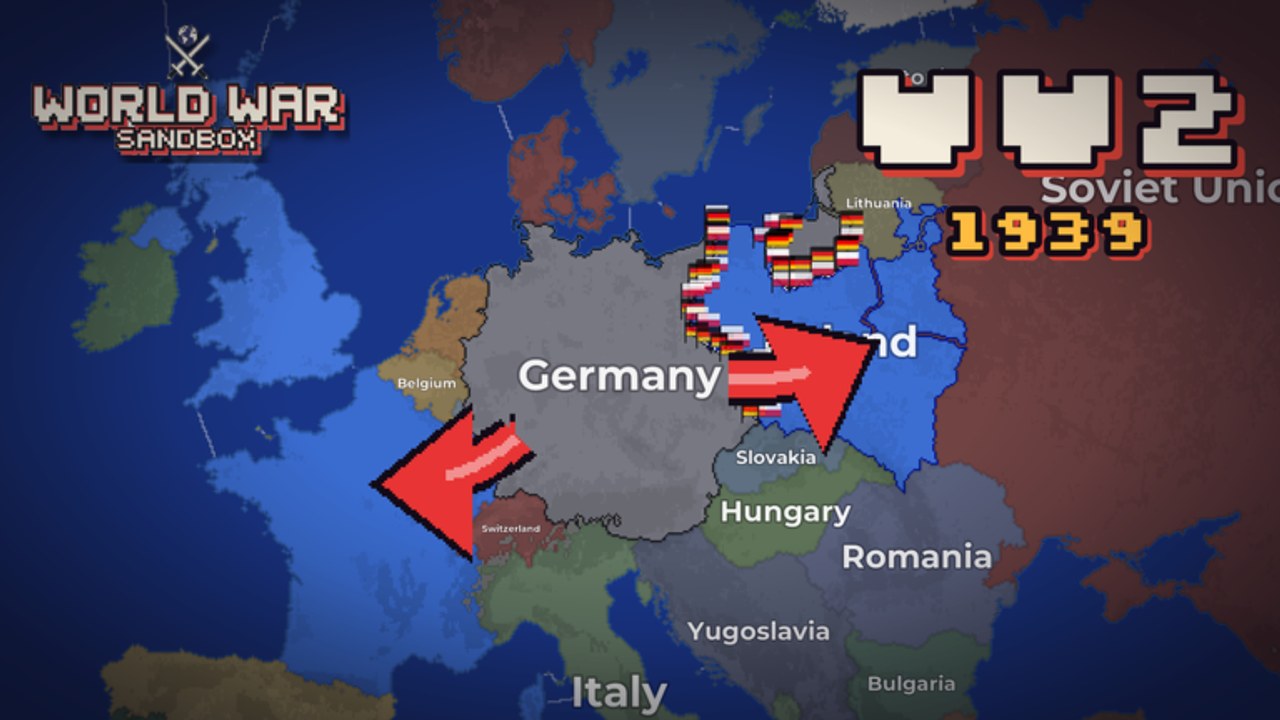
Mastering World War Sandbox starts with the interface. The simulation looks simple — a pixel map packed with nations — but misclicks turn clever interventions into accidental world wars. This page explains how to move the camera, select nations, aim god powers, command flag troops, and stay oriented in the Map Editor. Pair it with Getting Started if you are brand new, then jump to God Powers once selection feels automatic.
Exact keybinds can vary by device and Roblox input settings. Treat the habits below as durable skills: slow camera, deliberate selection, confirm targets, then act.
Camera fundamentals
Your camera is how you read history as it happens.
- Pan across the map to follow active fronts instead of staring at one capital.
- Zoom out for diplomacy and continent-scale wars; zoom in before placing precise disasters or troop orders.
- Re-center after big events. A nuke or flood can redraw borders while your view is still locked on the wrong peninsula.
On mobile, use gentle pinch-zoom and avoid frantic swipes that skip past the nation you meant to select. On desktop, combine scroll-zoom with mouse pan and pause between moves so the AI state remains readable.
Selecting nations and reading the map
Selection is the difference between steering a story and randomly punching the world.
- Zoom until individual nations and borders are distinct.
- Tap or click the nation you care about — confirm the highlight or info panel before issuing orders.
- Note neighbors, active wars, and terrain context. Flooding a landlocked highland state behaves differently from flooding a coastal empire.
- Deselect or change focus deliberately when you switch from observation to intervention.
When multiple wars burn at once, pick one front to manage. Server size is capped at 12 players, but the AI still runs hundreds of nations; focus beats multitasking.
God power UI workflow
God powers (nukes, meteors, floods, volcanoes, revolts, and more) share a common workflow even when effects differ:
- Open the abilities / powers panel.
- Choose the power that matches your intent (pressure, collapse, comedy chaos, or strategic reset).
- Aim carefully — many effects have splash, chains, or diplomatic fallout.
- Confirm the cast, then watch for secondary wars before casting again.
Free abilities from the Abilities Update make experimentation cheaper. That is a gift and a trap: unrestricted spam teaches less than spaced interventions. Full power details live on God Powers.
Commanding flag troops
Flag troops let you influence front lines more directly than waiting for AI armies.
- Select the relevant nation or army context first.
- Issue movement or front-line commands only after zooming to the contested border.
- Support troop pushes with complementary powers (for example, revolts behind enemy lines) instead of stacking every tool on one tile.
- If a push stalls, zoom out and reassess supply of neighbors and alliances rather than repeating the same click.
Think of flag troops as a scalpel and world disasters as a hammer. New players often use only the hammer; veterans mix both.
HUD and session awareness
Keep these UI habits every session:
- Glance at era context so your expectations match Roman logistics vs. Cold War escalation.
- Track unlock currency (coins) and level progress without letting menus block the map during peak wars.
- When hosting, leave mental bandwidth for explaining the UI to friends — see Hosting Worlds.
- After patches, re-open the powers panel once; new free abilities can rearrange icons.
Check Updates when the HUD changes and Codes if a promo adds menu entries for rewards.
Map Editor controls (preview)
The private Map Editor uses painting and selection tools rather than wartime commands. Practical habits:
- Zoom in for borders; zoom out to judge continent shape.
- Paint in passes (landmass → regions → contested choke points) instead of detailing one corner forever.
- Save often if the editor offers persistence tools, and test the map in a hosted session before inviting a full friend group.
Deep editor strategy belongs on Map Editor. Come back to this controls page whenever brush misclicks waste a painting session.
Desktop vs mobile tips
Desktop players usually have an easier time with precise power aiming and editor painting. Use that advantage for careful border work and multi-step troop orders.
Mobile players should:
- Prefer larger zoom levels before selecting tiny nations.
- Cast fewer powers per minute to avoid mis-taps.
- Host or spectate with voice chat so friends can call targets while you manage camera.
Roblox touch and mouse settings in the Roblox menu can reduce accidental camera flicks. If the sandbox feels “slippery,” fix input sensitivity before blaming the game.
Practice drills (10 minutes)
- Pan coast-to-coast without losing track of one marked war.
- Select five different nations in a row without misclicking neighbors.
- Aim a non-nuclear power at a border province, cast once, and narrate the fallout out loud.
- Issue one flag-troop command, wait, then decide whether a second command or a revolt is smarter.
- Open the editor briefly and paint a single island chain to feel brush size vs. zoom.
Complete those drills, then return to Getting Started goals or jump into powers and hosting. Clean controls make every other guide on the Guides Hub more useful.
Frequently Asked Questions
Quick answers about powers, hosting, codes, and progression.
Why do I keep selecting the wrong nation?
Zoom in until borders are clear, confirm the highlight before casting powers, and slow down on mobile. Tiny coastal states are easy to miss-tap during wars.
Should I learn controls before god powers?
Yes. Camera and selection mistakes waste powerful abilities. Spend ten minutes on the practice drills above, then read the God Powers guide.
Do controls differ in the Map Editor?
The editor emphasizes painting and region tools instead of wartime orders. Zoom and selection habits still apply; see the Map Editor guide for workflow tips.
Can I play World War Sandbox well on mobile?
Yes, especially as a spectator or light interventionist. Use larger zoom, fewer casts per minute, and consider letting a desktop friend handle precise editor work.